NEXON Player
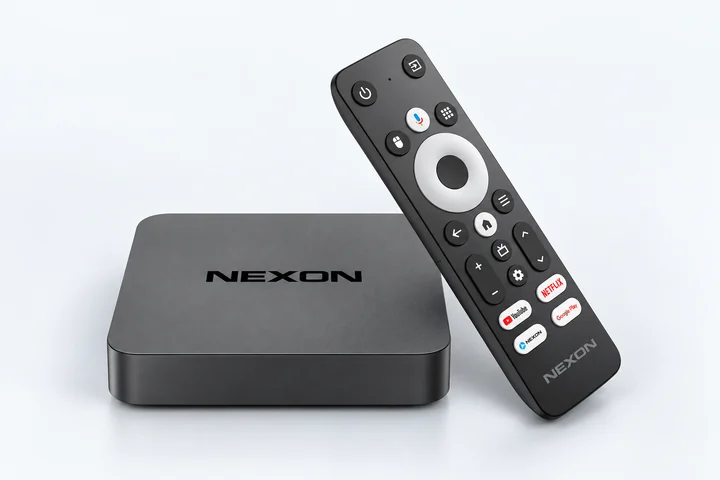
NEXON Vision is built into the firmware and starts automatically. All you need is power, internet over LAN and the code on the box — no monitor required
Audio connections
HDMIAVS/PDIF
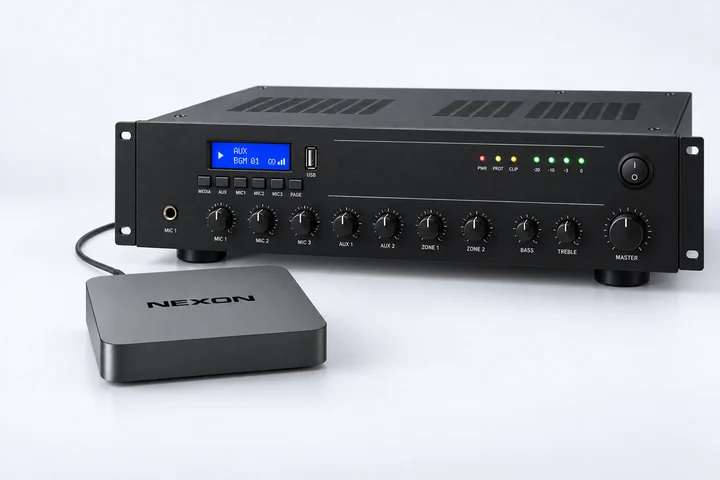
NEXON Player has HDMI, AV and S/PDIF ports. AV-to-AUX (3.5 mm) and AV-to-RCA (stereo) adapters are included. Choose the connection that matches the input on your amplifier or powered speakers
Get started without a monitor
Plug the supplied power adapter into a wall outlet and connect the player by Ethernet cable to a LAN port on an internet-connected router.
Connect the player’s audio output to the matching input on an amplifier or powered speakers. Use the included AUX or RCA adapter if needed.
Create an account or sign in. Go to Screens → Add screen and enter the 9-digit code printed on the player’s box.
Open your account
Upload audio and start playback
Upload audio files to your account. In Screens, select the connected device, click Change content and assign audio content to it. You can play a single file right away or create a playlist from several files.
Check that sound plays through the connected speakers.
Android TV / Google TV boxes and sticks
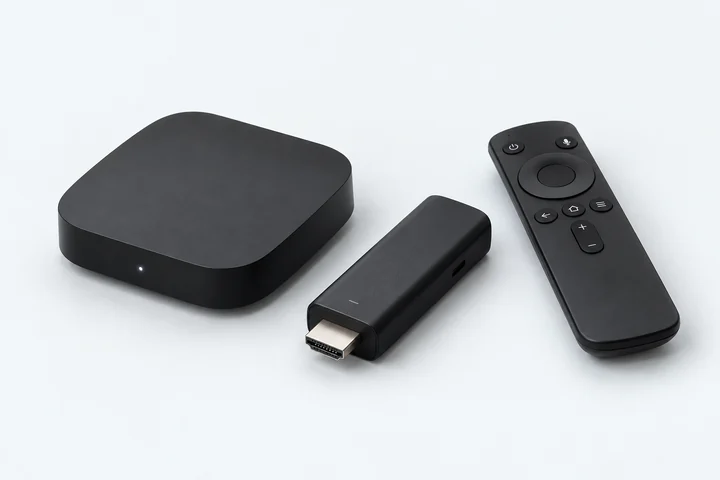
Any Android TV or Google TV box or stick will work, regardless of brand or certification. Use a device you already have or buy one from a local store
For example: Xiaomi Mi Box, Xiaomi TV Stick, Homatics, Strong or any others
* Amazon Fire TV: check the model’s compatibility with NEXON Vision and APK installation. On Fire OS, find Downloader in the Amazon Appstore, not Google Play. Vega OS does not support Android APKs
Audio connections
Options include a 3.5 mm audio output; an AV output with a matching AUX or RCA adapter cable; or HDMI with an HDMI-to-3.5 mm audio extractor. For a third-party player, select an adapter separately to match its ports and your audio system’s input
First connect a TV or monitor
Connect the box or TV stick to the HDMI port on your TV or monitor and select that HDMI input.
Plug the supplied power adapter into a wall outlet, not the TV’s USB port.
Connect the player to the internet over Wi-Fi or Ethernet, if available.
Install NEXON Vision
Option 1 — using Downloader
On the player, open Google Play, sign in and install Downloader by AFTVnews.
Open Downloader and enter the code below or get.nexon.vision.
When Android asks, allow Downloader to install apps from this source. Install and open NEXON Vision.
Installation code for Downloader8647509
This code is only for downloading the app. To add a screen in your account, use a different code — the one NEXON Vision displays on your screen
Option 2 — from a USB drive
If your player supports USB drives, download the APK on a computer and copy it to a USB drive.
Connect the drive to the player. Open the APK in a file manager, allow installation from this source, then install and open the app.
Download APKLatest public version of the app
Add the screen to your account
After installation, open NEXON Vision on the player. A 9-digit pairing code will appear on the screen.
Create an account or sign in. Go to Screens → Add screen and enter this code.
Connect the player’s audio output to an amplifier or powered speakers using the connection you selected. Then assign audio as described below.
Open your account
Upload audio and start playback
Upload audio files to your account. In Screens, select the connected device, click Change content and assign audio content to it. You can play a single file right away or create a playlist from several files.
Check the sound through your speakers. Once the third-party player is set up, disconnect the TV or monitor, leaving power, internet and audio connected. Check that playback continues without the screen.
Connect passive speakers through an amplifier. The player’s audio output does not replace a power amplifier